All tech and Linux blog, under the flag of open source world....

Showing posts with label tutorial. Show all posts

February 8, 2020

Learning the Linux command line with OvertheWire

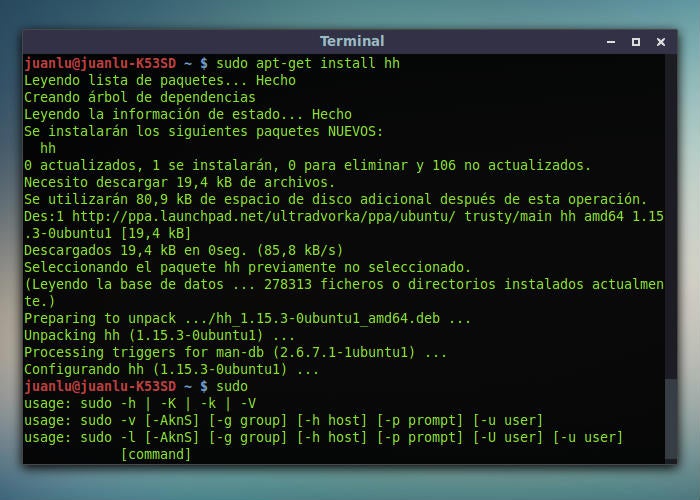
Linux terminal running
  I can say that after switching to Linux, looking at the terminal was frustrating, I would avoid it at all costs, that's why I switched to "Celluloid" a gnome made FFmpeg video player. After dealing with a lot of problems and must usages of the terminal I essentially learnt the commands to progress my work in Linux.
 Recently p4r4xor, introduced to me this really fun game to do and learn, hosted by overthewire, which puts you through different tasks to learn how to manage a server, crack some and memorize some commands.
 The game is developed in a way which will put you through different challanges that increases your productivity and strength and it is established through an SSH connection to the server.


There are different modes as you go, for example bandit sneaks through the files to find information.

The website: https://overthewire.org/wargames/
it's suggested to play as a bandit if you are a beginner.


here I have done the Bandit challange till level 5 with the methods to solve:
Share:

November 24, 2019

Changing mirrors in Fedora

You might have a problem with your package download speeds in fedora Linux but changing it is quiet easy, we will also show you a method of how to find the fastest one.

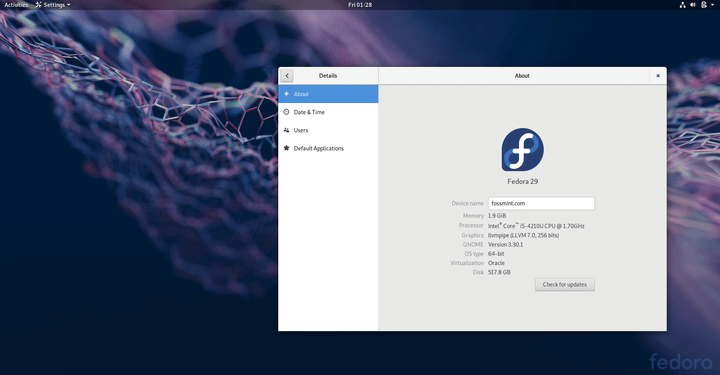
Fedora Linux 29
This guide will work on all recent Fedora versions. First head over to "etc/yum.repos.d" using gnome files, then right click on the empty section then choose open terminal. (you can do this directly with "cd /etc/yum.repos.d" command.)
Then choose a text editor, like vim or nano, and open fedora.repo using sudo. (sudo vim fedora.repo).
Now open your browser and use this link to go to fedora mirrors website, choose your version and find the mirror that you desire. (Select the one close to you that has a high bandwidth for a better speed.)
Click on Http link of the mirror that you have chosen.
Here I have selected RWTH Aachen mirror that is close to me and fast.
copy the link in the new opened page, now go back to your terminal.
In the terminal .
Here I'm editing fedora.repo in vim
Change the #baseurl  in the beginning, by pasting the mirror link. (make sure you don't remove  "$releasever" to the end of the link. because fedora finds the package file using the release version  and it also means you don't need to change your mirror when you update your fedora.)
paste your link and check if the sub directory looks similar to the previous one. then save this file. (in vim you should press Esc then type ":wq")
You can also edit the fedora-updates.repo by doing the same,  just make sure the ../updates/releasever... is included at the end. because this repo is for updates, we don't want to confuses it with the original mirror. Check your new mirrors now! :D
You can use this guide on any repository just make sure you backup.

For finding the fastest mirror

For finding the fastest mirror there are two options: 
  • Test each mirror by downloading a package from it for example I use my browser and download Apache server package and check the time it takes to download it in each mirror.
  • There is a tool here an app that does this for you, follow the guide in the README file there, also note that this is a BETA so backup your mirrors before doing anything.
Thanks to Fedora Community to make this guide happen.
Share:

April 1, 2019

How to install Vscodium in Linux. (with updates)


Visual studio code, a popular IDE for developers.

Visual studio code is among the best IDE's for code writers that features plugins, the problem is that Microsoft still steals your information through it, and it is a bit uncomfortable to see that Microsoft knows what you code.

Vscodium, the solution

Vscodium is the same as Visual studio code but it uses binary releases of VS Code without MS branding/telemetry/licensing. So you are free of Microsoft's shackles, Without loosing any features.


How to install:

First you need to add the repositories to your distribution, I used fedora so in the directory "/etc/yum.repos.d" I create a .repo file named " vscodium.repo "
Using the nano command (Sudo nano), install nano using "sudo dnf install nano" if you don't have it. after nano installation copy this instructions into the interface:

nano interface


[vscodium]
name=Vscodium Fedora $releasever
baseurl=https://gitlab.com/paulcarroty/vscodium-deb-rpm-repo/raw/repos/rpms/
enabled=1
metadata_expire=14d
type=rpm-md
gpgcheck=1
repo_gpgcheck=0
gpgkey=file:///etc/pki/rpm-gpg/vscodium


Then use " ctrl+O" to write in the directory "/etc/yum.repos.d/vscodium.repo " 
As you can see at the end of the code we see a directory containing the encryption key so we need to create encryption key for it, close then re-open nano, type this key into it make sure to include Begin and end headers in the file! :

 -----BEGIN PGP PUBLIC KEY BLOCK-----

mQINBFu8c8sBEACrPcX4UB0rGFObGzIpa3fqJy0K//W5XENNBrGlk6DS68SwkSza
QFoD+ZoGiwGZWy+X5m2bm6A0j8ff61uKLZFx4turikggdqey6RL3NIQOmhzbz9jc
90ZtVG3W2VHwP1Oy2sITJBD1UdCtnRR7ONfoLVJbavPrjHL0VEJqV6kF7ki45DAK
yVbEGjsg668l8FmfMIYyoqV8HQ+JosXQ6ItOH2QlGwvD5RvBmIRzIXSS159+UHBj
jrk81Pb1RLWUafoh8Geh4VZHQrvqkLmds/74KZQg47zDr1atKeIRe/p7UPZIEJsr
puOQP+4yfW8CKN/du62mO37xyJBcQpdsk+27/AAbpluwwzfrRAZcI9wqlmE7CRie
tARI3eLA/BVeLm0U5Jxemc1asTAptQTij9BvzFfZcpkwK+AcVmaicQhJ9iaa8bQ2
oTTE5keewHgVdun+XfeMPPuRcF5QxeVK9dZQVI3nSObOXrehulkYXusMQ4vq8bh7
GktI5n1O2qehnSn/Is7kdLBWDy8xGlgYEWe9oStQ5NSXo4PR7YWDzPs5aXBz9LOa
zthJqM1Ah41q5/rSgfhM3e+vXtF3M8phLoJTE5mlb370XVH1ZLNbXVvIuHO0L+Lh
ruZc/tREFWThOiS+FIGv/MDs4DieWEwr9+/598pFERo7cJEo5AZNgPy8SQARAQAB
tCRQYXZsbyBSdWR5aSA8cGF1bGNhcnJvdHlAcmlzZXVwLm5ldD6JAk4EEwEIADgW
IQQTAt5gIxiJ/h66ytxUZ4z3WieNnAUCW7xzywIbAwULCQgHAgYVCgkICwIEFgID
AQIeAQIXgAAKCRBUZ4z3WieNnPDyD/oCSpzl4uua0r/T4cL0rEhHVg82HounlTs2
BxI0ZhJpjdqIE2ytIFiwdV47yAkt04ow0zEBHbZQldvixfsM3tDYrC6iiC4pRMMc
W6oVGf18r8nKKRmYTaOSPWL5yhLgO/IkQ/kCBsu3Wf0bp3GbHQ4wny+rmP745oG9
npGPPW7EiUcFYPIM/YX2YqSH/FOGcMOwlp1QEvVqypQqaogyUmDRP+6bpKYMuq/c
GuPxHuwPmS7a3Zd6ybAtYBNumC/lNYbfxAZA1NK4WViVGB/P5GBWC0HSfLPsBu7D
/GqoqYCDTYYtSpnw2kUpkGWqOaWZc9S5Jvp26Hw+VoVGBdJUe7s7qJyeNmdjM/cR
/dNY9+fW3w9zWgJZcXTnScmpi0vzA7BLmFfsphPBZ7J1Sc+N72uV/W9A70yyNhSw
DQ20/4D2AHNozmq881LhBlOIw24jb0LlbrA7CFoR10zkpXsS/Vh1EWReV1z4zJDv
H1SKUzXaOJUpqqW0EpblEpH4qg5hknnnW4XjvlWZO/ICkKTi0LxXK9Lmcbhtzg9t
Wh7bfDXHXoQYS4QooJbzUhAHwXvQp03R0qu6UhEVhO42y5PVQ/+18FlhgBd+zP1Q
7Urb93f+7YbSa8e34ANcVvJZc7gP2oRTuVyKVjO/Q9l6+Qzg9DTFVPGYLvYJKIpK
odUkTbb/ArkCDQRbvHPLARAA3zMxF1XX4tLaz/0U7p381AXmtMA2L63mRQ3YGZxg
fVxyVx6FdLujxJHytIGnLb9FYQZkxjYyMVc8/7ukrPUTHDUHm2ab4mG0SvhDI3nx
2qeXE2dYMkpLoBqvFLekFAU129w9BLm9lbHfN+JbbdMmoqlyiufuPM6gz0gBV6ce
oXUtu8Q2/ixshSfvcdHx21ZD2HuNqSyworbzkA+0B0F51QRp1tqYJ7wQm3n82rQ+
YFS97Un+7VWgJrX4aofUxRiDx0VHIYkEN8QcDZTQywT4zkj6tDMyKEp40axvZ6zM
AlaTI1GVrGMUHH7bnZXiF2ZyKHOF6XjTuEfotHXm8fzEHLdhtdUxiQ4+GK5ajQN2
ay/v5JEtsc3FSAmjfTW9r6jEAiDn5TbeKHtLpeGmtPqvgK/Nzo5rRRx0NgymymeF
q7Ir4ATu9x8KKYXa/tFd2Qe8rtxNqhYjUh+W7FpMMNXYa18G+PbwNqpEGMdp51rS
9/Lq2GSYcuCV/jD2QbySUX5wHe9zDNiOuovBFhJZS8H2OGl6aep6zEpV/Q7FcWEG
9fz4RHADSGB6RFFI8hyV0/YaVU9rB4fAOZzybuJ4DSadOAsVVfkk2WdnUM6x1z24
XhRdakH+ekGDg+nqs8wUc4u4ouo7dPTPaxbrUas5gdzjbtwoYXoKaIUnisPRranz
EjsAEQEAAYkCNgQYAQgAIBYhBBMC3mAjGIn+HrrK3FRnjPdaJ42cBQJbvHPLAhsM
AAoJEFRnjPdaJ42cEq8QAKJ1YUzQsgzUWSzkPgSZJwOAujWkDdhw+YbNvjHAgRZA
DrNbIyIYkJ/IevubOnteJgwGP/6qaMJwemM+VJ3e/YHvcvAmIilmH33tnnMRqWsj
xqG021SuX3FGdMXR7WwINZaToh+Lqaj4YXpanjPzGMGKZlzaSdj6avm7KT3HGHjO
Gk/nz0rAsqXfuzQBkHZ+JozUMqrh30+POcvkyFhqmTQ9juECFzOtegbEWYdDFBMA
tig1whBccebZ0W+Sva+e1AKktwHNtweaofCg8zQ39Nx1KOz9FoH4B2QF+dYU/yMQ
BpPYTRQPfbaf2/t5JJaoplWrE2gP+JS8ET11J7U4xtzqs7QprcCurTZv42PjwPKu
Hc8uwE1VaeX+d7zRGXD9ooR+u+BWKiwxD9p54/QHu/qh/x/4evrETTIZGsheojgm
srMYT2mW1hLFcOANAgvxuIm+O51+XYviQCGPqg8J2jm5zmxMNwEhVx0ObYcnJqve
klJniYNw9Ja9gnXxXWycChhmGM/QFLE0yrN7di7oDeN/JUhPPgppCken/xFihoxz
hlNM8vyJMQiddIBiEcz0zcAbbT74+qFJv9KRsfWAU0MEy3a66H/hybEJu140qTNw
d7e/dbqns8bDX1BP/x5/QKfxbZNoH2QWmCdv/b5dJ97OXFBtPM/VnOYaaFG5y2gX
=LCWI
-----END PGP PUBLIC KEY BLOCK-----


 Copy and write this key into this directory "/etc/pki/rpm-gpg/vscodium", note that vscodium is plain text and does not require any file type,  then just type in "sudo dnf install codium" and you are ready to go! 

After installation run vscodium,  settings>type in the bar "@tag" and click the first bar, then unselect the first three row that appears.


Thanks to fedora community for this tutorial.
Github link for vscodium.
Enjoy coding!
Share:

Labels